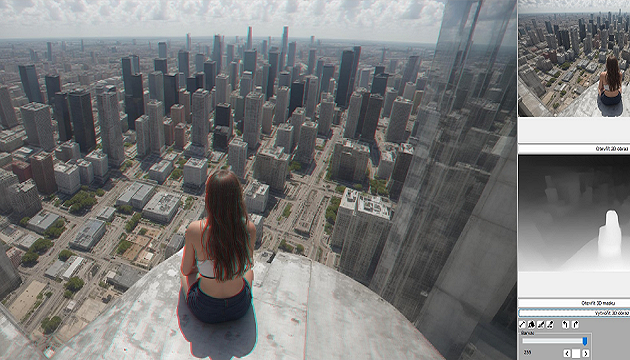
To create a 3D picture (or a 3D movie) from two photos, you should use a specialized software which makes this task easy. In this article you can find informations about software, which is able to create 3D pictures (and series of them - for 3D animations and 3D movies) and correct a lot of possible problems with them to get the best 3D pictures possible.
For full version of this software click on this text. Limited FREE version is available
here It's the program 3DJournal* (it has the same name as our server) - you can get the free version or the full version of it.

The free version writes some dots to the finished picture and the text 3DJournal - FREE. For your experiments - including the check of all the possibilities of our software and saving files - it should be OK.
And how to use this software?
Creating of 3D images
To create a 3D image you need 2 images – one from your right eye view and second from your left eye view. How to get them? You can read it for example in
this article . Load both images to 3DJournal software using buttons located at it’s right side. The images then will be shown in their windows. Press Create 3D image button and the 3D image is created. You can see there color ghosts which allow your eyes with glasses to see the image stereoscopically/3D. You can use not only the buttons but the menu as well.
Corrections
If the left and the right images haven’t been created exactly as they should have been - and one of them is for example smaller or shifted up, you should make a few corrections now to get as good 3D image as possible. Do this:
1) Are depicted objects on both images of the same size? If not, use 4 buttons named Size to resize the left image as necessary.
2) Are the red images of the objects in the same height as their blue (blue-green) counterparts? If there is a difference between the right and the left part of the image then use rotation. By rotating to the right the left part of the photo goes up and right part down. Rotating to the left makes the opposite.
3) Now use the arrows up and down to position different 'ghosts' of the same things to the same height.
4) And now use the arrows to the left and to the right. Use 3D glasses and continue the shifting until the 3D effect is the best possible.

You can check boxes Low colors and Gray to make a less colored picture. It can help to emphasize the 3D effect. But it’s not good to use it when using colorcoding which doesn’t use all colors. If you make a mistake and load the right picture to the left and the left to the right, you can swap them by checking the appropriate checkbox.
Save it
Now you can save the finished 3D image. You can save the whole image or it's part only. If you choose to save only a part of it then you have to select which part (by clicking with the mouse to the left-up and then to the right-down corner of the image). You can save the image as bmp, jpg and gif - simply write the appropriate extension behing the name (for example cat.jpg).
Extended functions
Use Extra button to open extended functions window of 3DJournal software.

In this window you can:
* Set color coding of the image. The standard coding is anaglyph for red/cyan glasses, but you can set the coding for example for blue/yellow glasses as well.
* Set the quality of saved jpg image. We recommend to use higher quality which allow to get a good 3D effect.
* Create more 3D images at once – for example for creating an animation or movie.
* Save settings/properties. This function saves for example the rotation, shift of the images, color coding, jpg quality, cropping of saved image for animations etc. So you can return to your image editing anytime and use the older parameters for example for preparing frames for your 3D movie.
3D animations and 3D movies
To create 3D animations and 3D movies we recommend:
1) Save left images of your animation/movie to one folder. Save right images of your animation/movie to another folder. How to create these images you can read for example in
this article . The pictures should be numbered, for example this way: Left001.gif, Left002.gif, Left003.gif and Right001.gif, Right002.gif, Right003.gif etc.
2) Load the first left image and the first right image to 3DJournal software and make all things as usually. Then save it.
3) Press the Extra button. You can see filled in image names – and you can fill in only the number of 3D images to create. Press Start processing button. All the images will be processed in the same way as the first one – including rotation, shifting and cropping before saving.
4) Using created 3D images you can create a 3D animation or a 3D movie as described for example in
this article .
(3DJournal)
---------------------------------------
* To create 3D animations and 3D movies it may be necessary to use some more tools available freely on the internet.